¶ Account Management
The Account Management features in the COSMOS Portal let you update your profile information, change your password, and manage the SSH keys used to access testbed nodes. These settings are accessible from the user menu in the top-right corner of the portal (click your name, then select Edit Profile or SSH Keys).
¶ Edit Profile == #Profile
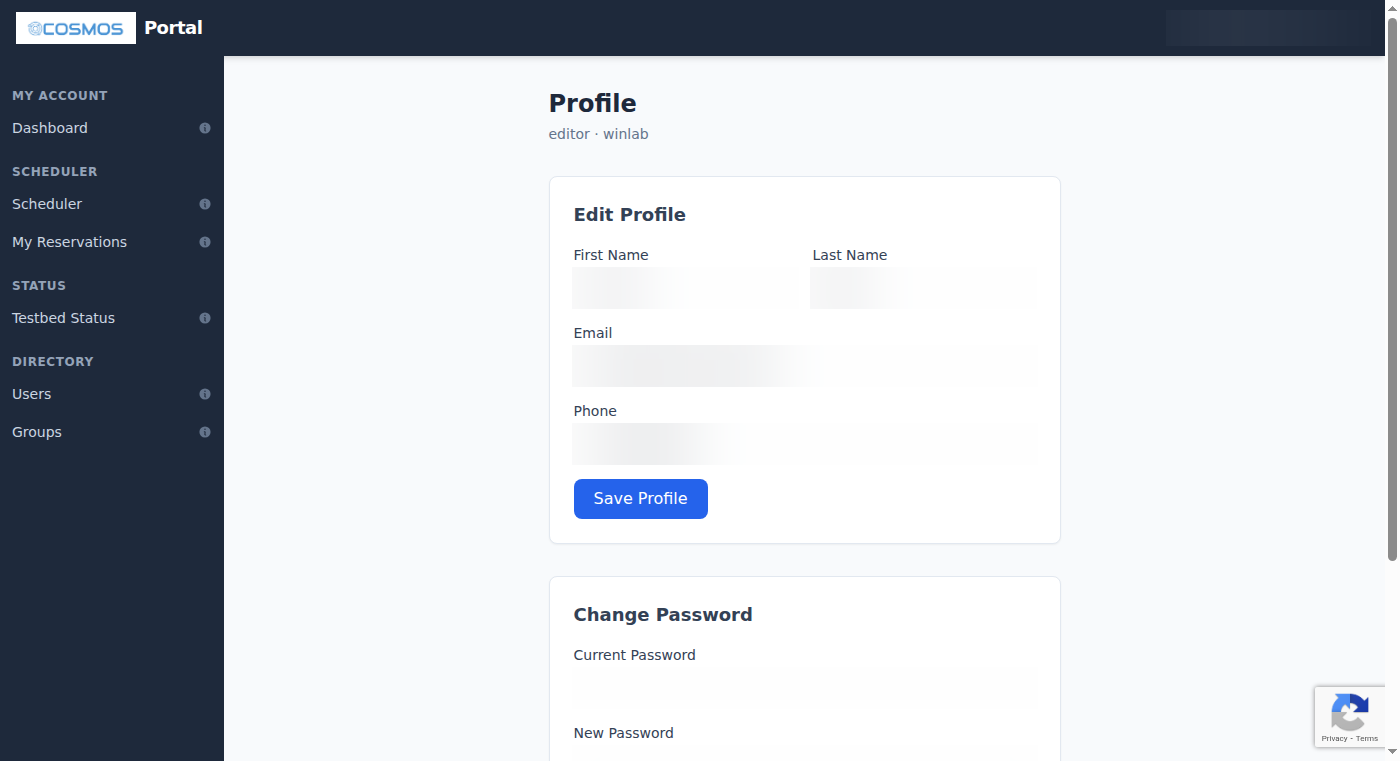
The Edit Profile page lets you update your personal information. The following fields can be changed:
* First Name and Last Name — used in the portal directory and reservation records
* Email — changing your email takes effect immediately and affects all future notifications, password reset links, and testbed announcements
* Phone — your contact phone number
Your username and organization cannot be changed after registration. If you need to change either, contact testbed support at `problems@cosmos-lab.org`.
Changes to your profile are immediately reflected in LDAP (the testbed's central directory service), meaning updated information propagates to all testbed systems.
! (/trac/cosmos__userguide__portal__portal-profile.png)
¶ Change Password == #Password
On the Edit Profile page, scroll down to the Change Password section. To change your password:
1. Enter your current password for verification
2. Enter your new password
3. Enter the new password again in the Confirm Password field
4. Click Change Password
The new password must meet the same strength requirements as during registration:
* At least 8 characters
* Mixed case (uppercase and lowercase letters)
* At least one digit
* At least one special character
* Must not be a commonly used or weak password
Your new password takes effect immediately across all testbed services.
¶ SSH Keys == #SSHKeys
SSH keys are the primary authentication mechanism for accessing testbed nodes during your experiments. The portal's SSH Keys page (accessible from the user menu) lets you manage your public keys.
¶ Why SSH Keys?
Password-based SSH authentication is disabled on testbed console servers for security. Instead, you authenticate using public-key cryptography: your private key stays on your computer, and the corresponding public key is stored on the testbed. When you connect via SSH, the server verifies your identity by challenging your private key — no password is transmitted over the network.
You can upload multiple keys (for example, one from your laptop, one from your desktop, and one from a lab workstation). All uploaded keys grant access to testbed console servers during your active reservations.
¶ Managing Keys
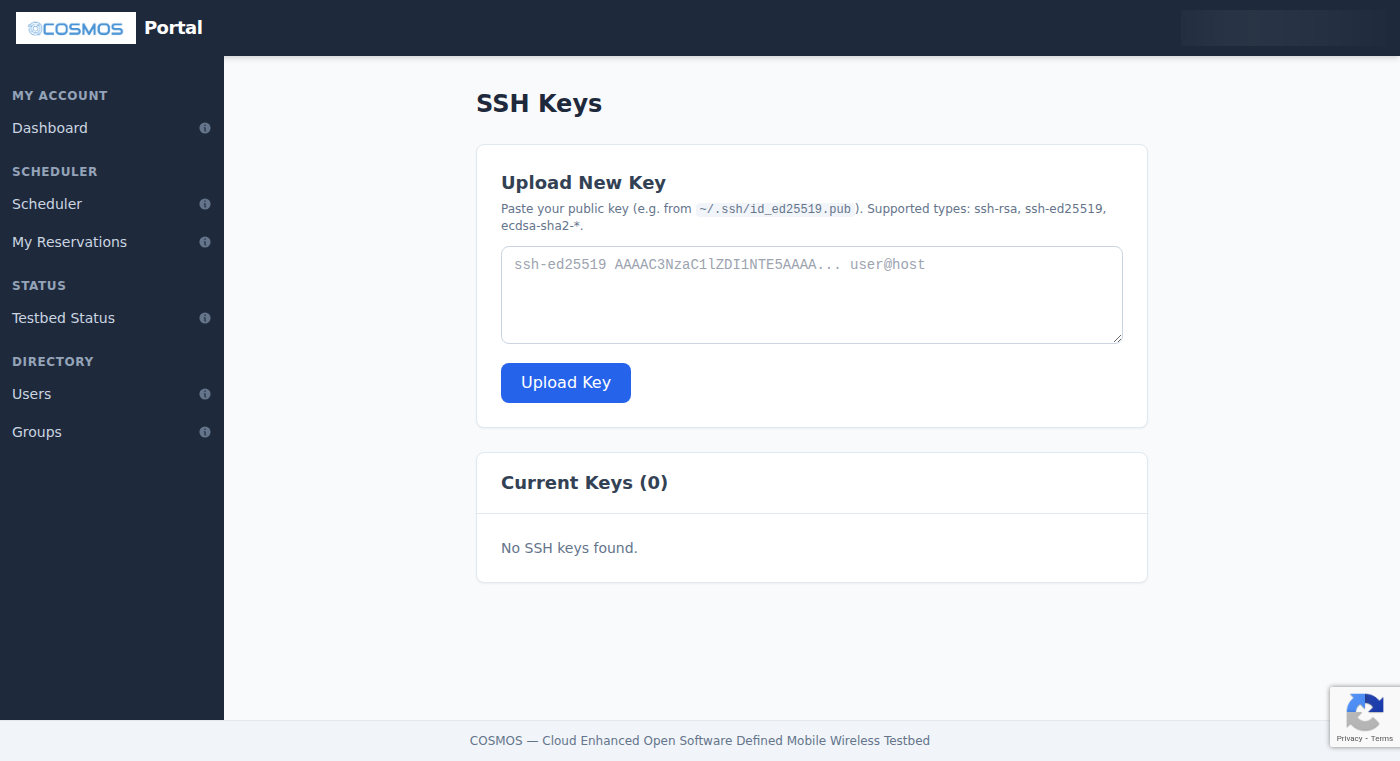
The SSH Keys page provides three operations:
Upload a key — paste the contents of your public key file (the `.pub` file) into the text area and click Add Key. The portal validates the key in real time before accepting it:
* Checks that the format is valid OpenSSH public key format
* Verifies the key type is supported
* Rejects private keys, incomplete keys, and keys with invalid encoding
View keys — all your uploaded keys are displayed in a list showing the key type (e.g., ssh-ed25519, ssh-rsa) and the comment field (usually your email or hostname). This helps you identify which key belongs to which machine.
Delete a key — click the delete button next to any key to remove it. Deleted keys are immediately removed from all testbed console servers. Make sure you have at least one working key before deleting others.
! (/trac/cosmos__userguide__portal__portal-ssh-keys.png)
¶ Supported Key Types
The portal accepts the following SSH key types:
| = Key Type = | = Algorithm = | = Recommended? = |
|---|---|---|
| `ssh-ed25519` | Ed25519 (elliptic curve) | Yes — fast, secure, short keys |
| `ecdsa-sha2-nistp256` | ECDSA with P-256 curve | Yes |
| `ecdsa-sha2-nistp384` | ECDSA with P-384 curve | Yes |
| `ecdsa-sha2-nistp521` | ECDSA with P-521 curve | Yes |
| `ssh-rsa` | RSA | Acceptable (use 4096-bit minimum) |
| `sk-ssh-ed25519@openssh.com` | Ed25519 with FIDO/U2F hardware token | Yes (hardware security key) |
| `sk-ecdsa-sha2-nistp256@openssh.com` | ECDSA with FIDO/U2F hardware token | Yes (hardware security key) |
We recommend Ed25519 for new key generation — it provides strong security with compact key sizes and fast operations.
¶ Generating a New SSH Key
If you do not have an SSH key pair yet, follow the instructions below for your operating system.
¶ Linux and macOS
Open a terminal and run:
ssh-keygen -t ed25519 -C "your_email@example.com"
When prompted:
* File location — press Enter to accept the default (`~/.ssh/id_ed25519`)
* Passphrase — enter a passphrase for extra security (recommended), or press Enter for no passphrase
This creates two files:
* `~/.ssh/id_ed25519` — your private key (never share this with anyone)
* `~/.ssh/id_ed25519.pub` — your public key (this is what you paste into the portal)
To copy the public key to your clipboard:
cat ~/.ssh/id_ed25519.pub
Then select and copy the entire output line (starting with `ssh-ed25519`).
¶ Windows (PowerShell)
Windows 10 and 11 include a built-in OpenSSH client. Open PowerShell and run:
ssh-keygen -t ed25519 -C "your_email@example.com"
The key pair is saved to `C:\Users\YourName\.ssh\`. Open `id_ed25519.pub` with Notepad to copy the public key.
¶ Windows (PuTTY)
If you use PuTTY:
1. Open PuTTYgen (included with PuTTY)
2. Select EdDSA (Ed25519) as the key type
3. Click Generate and move your mouse to add randomness
4. Save the private key to a secure location
5. Copy the text from the Public key for pasting into OpenSSH authorized_keys box — this is what you paste into the portal
Important: PuTTY uses its own key format (`.ppk`). The portal requires OpenSSH format. Make sure you copy from the text box at the top of PuTTYgen, not from the "Save public key" button (which saves in a different format).
¶ Further Reading
* GitHub: Generating SSH Keys — comprehensive tutorial for all platforms
* SSH Academy: ssh-keygen — reference for key generation options and best practices
* ArchWiki: SSH Keys — detailed guide covering key types, security considerations, and agent forwarding