¶ Chrome Remote Desktop Setup Page
Chrome Remote Desktop is a Google developed client-server framework that allows for remote desktop access to (in this case) a headless machine.
If you need to install Chrome Remote Desktop on the image
¶ Installing Chrome Remote Desktop (CRD) on a Custom Image
If you have a custom image that lacks Chrome Remote Desktop (CRD), follow these steps to install and configure it (based on Google CRD Installation page).
¶ 1. Update System Packages
sudo apt update && sudo apt upgrade -y
¶ 2. Install a Desktop Environment (XFCE)
If the custom image lacks a graphical desktop, install XFCE:
sudo apt install xfce4 xfce4-terminal -y
¶ 3. Install Chrome Remote Desktop (CRD)
Download and install Chrome Remote Desktop:
wget https://dl.google.com/linux/direct/chrome-remote-desktop_current_amd64.deb
sudo dpkg -i chrome-remote-desktop_current_amd64.deb
sudo apt-get install -f -y
echo "exec /etc/X11/Xsession startxfce4" > ~/.chrome-remote-desktop-session
Enable and start the CRD service:
sudo systemctl enable chrome-remote-desktop
sudo systemctl start chrome-remote-desktop
¶ 4. (Optional) Install Google Chrome
If needed, install Google Chrome:
wget https://dl.google.com/linux/direct/google-chrome-stable_current_amd64.deb
sudo dpkg -i google-chrome-stable_current_amd64.deb
sudo apt-get install -f -y  # Fix missing dependencies
In order to access a node that has Chrome Remote Desktop server side installed, you need to:
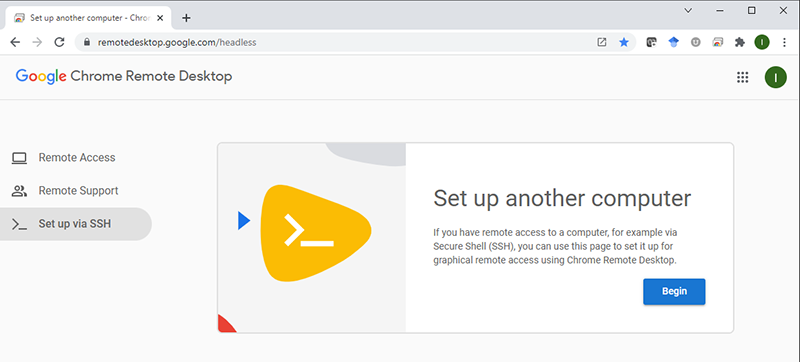
¶ Step 1
Access the remote access page on your local Chrome browser and hit the Begin button:
¶ Step 2
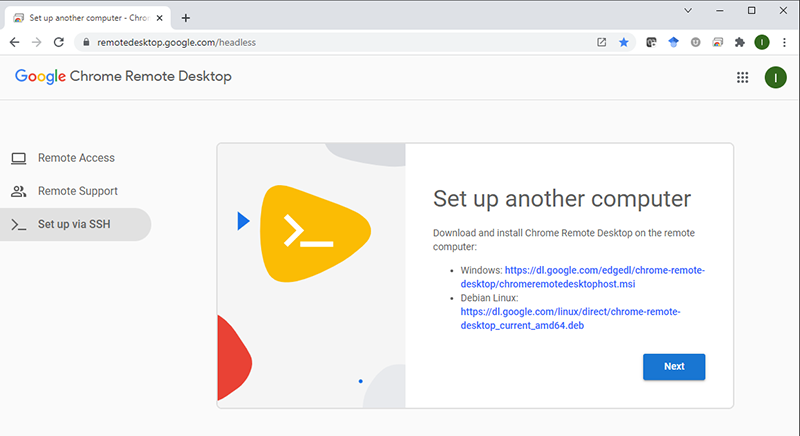
Select the Next button (under the assumption that you already have remote desktop service installed on the target node):
¶ Step 3
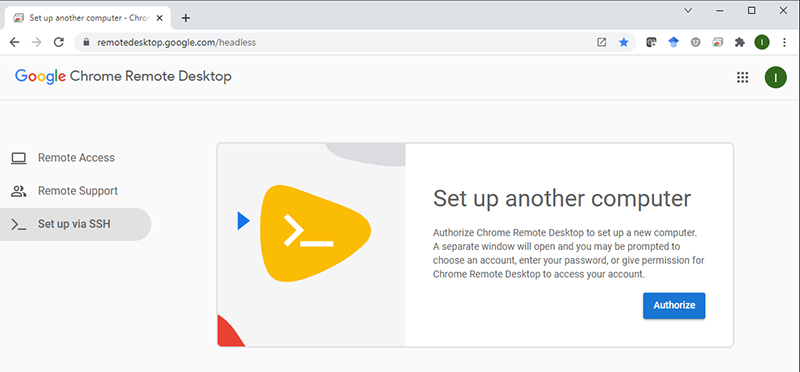
Generate authorization token for the node but hitting the Authorize button
¶ Step 4
Copy the command line with the token to you clipboard by selecting the target OS Copy button (icon to the right of the command line content pane - example below points at the copy button for the Linux platform)
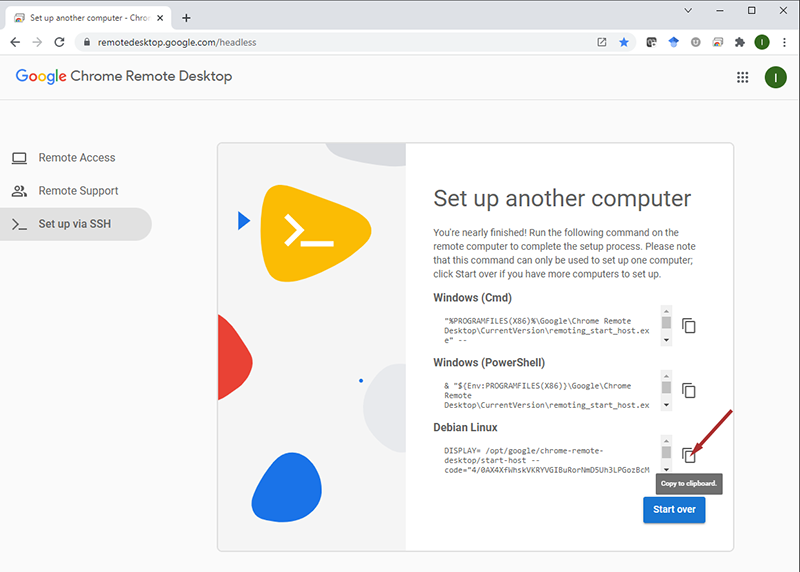
Paste that command line in the remote ssh session on the node command line (typically not as a root user but rather as a user that was created for the remote access).
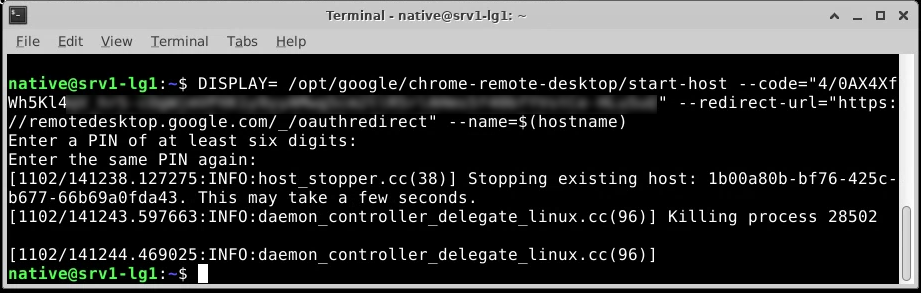
As shown in the above figure, the service will prompt you (twice) for a PIN number that will be needed in the next step as an additional security feature.
¶ Step 5
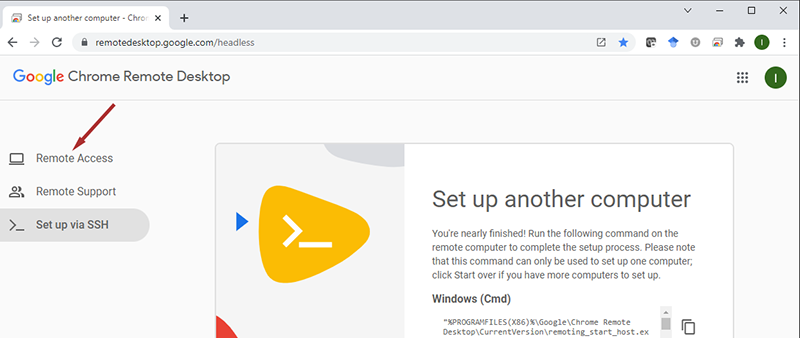
Switch to the Remote Access mode in your local browser:
¶ Step 6
If the authorization was successfully applied you should see the node listed under the Remote devices section:
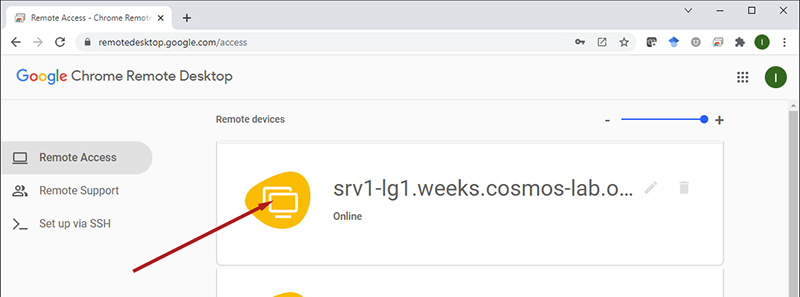
Select that node and you should be prompted for the 'PIN created in Step 5:
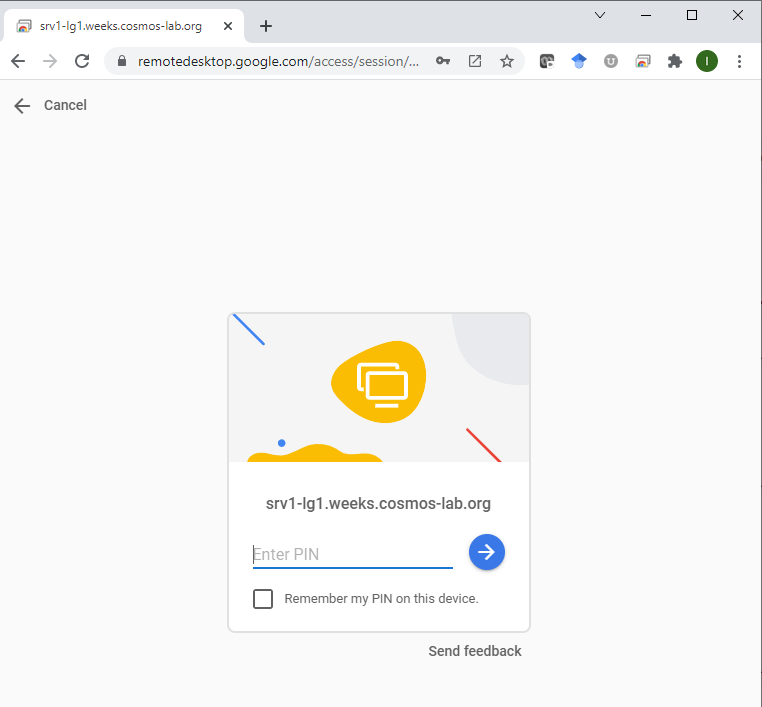
¶ Step 7
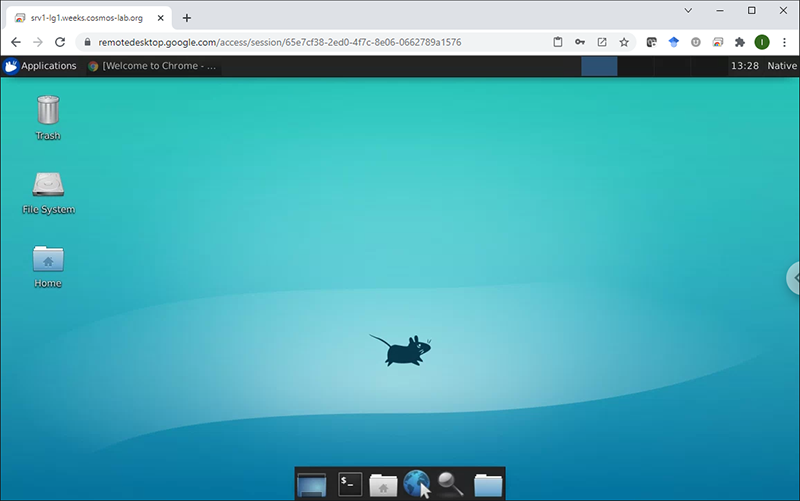
Once the pin is successfully entered, you should be rewarded with the remote desktop access within your browser:
Important note: Chrome Remote Desktop authorization toke can't be saved with the image and will not "survive" reboots i.e. you will have to re-authorize access every time node is booted