¶ InterDigital EdgeLink mmWave Mesh Transport System
Demonstrate the InterDigital EdgeLink mmWave Mesh Transport System on COSMOS sandbox 1, configuring the mesh network controller, ONOS SDN controller, and the Orchestrator to establish and provision mmWave mesh links between Gateway and non-Gateway nodes.
¶ Overview
This tutorial walks through setting up and running an experiment with the InterDigital EdgeLink mmW Mesh Transport System on COSMOS sandbox 1. The EdgeLink system provides millimeter-wave mesh transport using dedicated RF devices (Gateway and non-Gateway nodes) controlled by a Network Controller (NC) running ONOS.
The experiment uses three server nodes: one as the Network Controller (running ONOS and the Orchestrator), and two as traffic machines that provide wired access to the EdgeLink mesh nodes via a debug Wi-Fi subnet. The Mesh Network Controller autonomously detects available Mesh Nodes and establishes links between the Gateway Node and the detected Mesh Nodes.
The tutorial also covers the Orchestrator, a thin-client web application used to provision transport slices, bandwidth reservations, and service level agreements (SLAs) on top of the mesh network.
¶ Learning outcomes
After completing this tutorial you will be able to:
- Set up the InterDigital EdgeLink environment on COSMOS sandbox 1 using the
idel.ndzimage. - Configure routing between the Network Controller and the EdgeLink Gateway Node.
- Start and monitor the ONOS SDN controller.
- Access and soft-reboot EdgeLink mesh nodes via their debug network.
- Use the ONOS GUI to observe mesh topology.
- Use the Orchestrator thin client to provision transport slices.
- Save a modified server node image with
omf save.
¶ At a glance
| Difficulty | Intermediate |
| Estimated time | 90 min |
| Domain / sandbox | sb1.cosmos-lab.org |
| Topic group | cellular-4g5g-oran |
| Last verified | Not re-tested (migrated 2026-06-20) |
¶ Prerequisites
Background knowledge
- Familiarity with the COSMOS workflow and experiment life cycle.
- Basic Linux networking (routing tables,
ping,ssh). - Basic familiarity with SDN concepts (helpful but not required).
Account & access
- A COSMOS account — register here.
- An approved reservation on sandbox 1 — see Make a reservation.
- SSH access to the console — see SSH access.
- SSH tunnel or VPN access to
srv1-in3.sb1.cosmos-lab.orgon ports 8181 (ONOS GUI) and 8888 (Orchestrator GUI) — see SSH tunnel and VPN.
¶ Resources required
Devices / nodes
| Resource | Role | Qty | Notes |
|---|---|---|---|
| srv1-in3 | Network Controller (ONOS + Orchestrator) | 1 | Loaded with idel.ndz; hosts ONOS on port 8181 and Orchestrator (TomCat) on port 8888 |
| srv1-in1 | Traffic machine / access to GW EdgeLink node | 1 | Provides SSH path to EdgeLink GW node at 10.113.1.102 |
| srv1-in2 | Traffic machine / access to non-GW EdgeLink node | 1 | Provides SSH path to EdgeLink non-GW node at 10.113.1.103 |
| rfdev1-1 | EdgeLink Gateway (GW) Node | 1 | mmWave mesh RF device; bridge IP 192.168.150.1 |
| rfdev1-2 | EdgeLink non-Gateway (non-GW) Node | 1 | mmWave mesh RF device; bridge IP 192.168.150.3 |
Disk images
| Image | Load onto | Provides |
|---|---|---|
| idel.ndz | srv1-in3 | ONOS 1.9.0, Orchestrator (TomCat), routing setup scripts, InterDigital EdgeLink software stack |
Software components
| Component | Version | Source |
|---|---|---|
| ONOS SDN Controller | 1.9.0 | preinstalled in idel.ndz at ~/onos/onos-1.9.0/ |
| Orchestrator (TomCat web app) | TODO: verify | preinstalled in idel.ndz |
| InterDigital EdgeLink Mesh SW | TODO: verify | runs autonomously on rfdev1-1 / rfdev1-2 at power-on |
Spectrum / RF / special
The EdgeLink RF devices (rfdev1-1, rfdev1-2) operate at millimeter-wave frequencies. Consult the InterDigital EdgeLink hardware page for band and power details. The mesh nodes restart their mesh software automatically on power cycle; a debug Wi-Fi subnet (10.113.1.0/24) provides management access.
¶ Topology
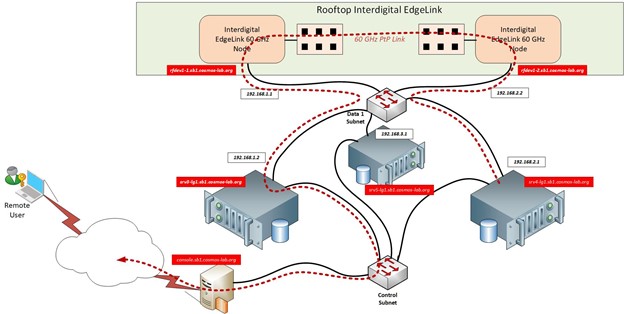
The setup consists of:
- rfdev1-1 (EdgeLink GW Node) and rfdev1-2 (EdgeLink non-GW Node): the mmWave mesh RF devices. Each restarts its mesh software on power cycle.
- srv1-in3: Network Controller running ONOS (port 8181) and the Orchestrator (TomCat, port 8888). Connected to the GW Node via
enp3s0using the 192.168.200.0/24 control subnet; the GW Node is at 192.168.200.10. The mesh data subnet is 192.168.150.0/24. - srv1-in1: provides management SSH access to the EdgeLink GW Node via its debug Wi-Fi address (10.113.1.102).
- srv1-in2: provides management SSH access to the EdgeLink non-GW Node via its debug Wi-Fi address (10.113.1.103).
All nodes are controlled from the console.sb1.cosmos-lab.org console.
¶ Setup
-
Reserve sandbox 1 and log into the console:
ssh <username>@console.sb1.cosmos-lab.org -
Prepare your local machine for GUI access by creating SSH tunnels to
srv1-in3.sb1.cosmos-lab.org:- Port 8181 → ONOS GUI
- Port 8888 → Orchestrator GUI
See SSH tunnel instructions or VPN instructions for details.
-
Check the status of all experiment resources:
omf stat -t rfdev1-1,rfdev1-2,srv1-in1,srv1-in2,srv1-in3 -
Turn off all resources before imaging:
omf tell -a offh -t rfdev1-1,rfdev1-2,srv1-in1,srv1-in2,srv1-in3 -
Load the controller image onto
srv1-in3(see omf image loading):omf load -t srv1-in3 -i idel.ndz -
Turn on the server nodes and the mesh RF devices:
omf tell -a on -t rfdev1-1,rfdev1-2,srv1-in1,srv1-in2,srv1-in3
¶ Instructions
¶ Step 1 — SSH into the controller node
From the console, open an SSH session to srv1-in3 (the Network Controller):
userid@console:~$ ssh native@srv1-in3
password: native
¶ Step 2 — Configure routing between the NC and the GW Node
Run the provided routing setup script to establish the communication link between the Network Controller and the EdgeLink Gateway Node (192.168.200.10 via enp3s0):
native@srv3-lg1:~$ sudo ./Rutgers_Package/setup_routes.sh
The script adds the following routes:
#!/bin/bash
route add -host 192.168.200.10 dev enp3s0
route add -net 192.168.150.0/24 dev enp3s0 gw 192.168.200.10
¶ Step 3 — Check routes and confirm the GW Node is reachable
Display the routing table and verify the routes for subnets 192.168.150.0, 192.168.200.0, and the host 192.168.200.10 are present:
native@srv3-lg1:~$ route -n
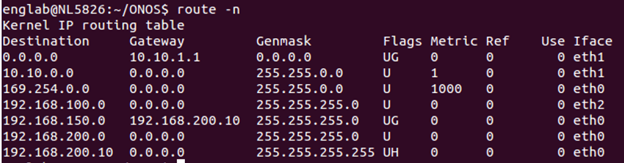
Expected routes: 192.168.150.0/24, 192.168.200.0/24, and host 192.168.200.10 should all be visible (via enp3s0).
Ping the GW Node to confirm connectivity:
native@srv3-lg1:~$ ping 192.168.200.10
¶ Step 4 — Start the ONOS controller
native@srv3-lg1:~$ ./onos/onos-1.9.0/bin/onos-service start
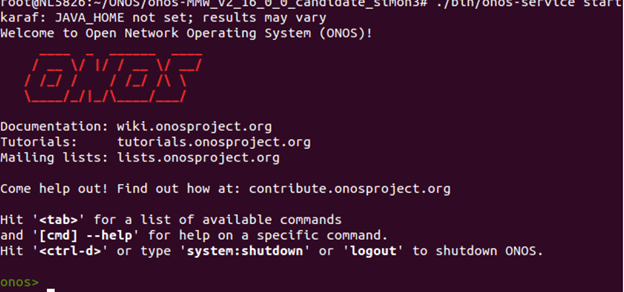
Wait for ONOS to finish starting. The Mesh Network Controller will autonomously detect the available Mesh Nodes and establish links between the GW Node and the non-GW Node.
¶ Step 5 — Access the EdgeLink Mesh Nodes (optional / debug)
Each Mesh node runs its mesh software automatically on power cycle. If you need to manually inspect or soft-reboot a node, access it via the debug Wi-Fi subnet from the respective traffic machine.
Access the GW Node (rfdev1-1) via srv1-in1:
userid@console:~> ssh root@srv1-in1
root@srv1-in1:~$ ssh root@10.113.1.102
Access the non-GW Node (rfdev1-2) via srv1-in2:
userid@console:~> ssh root@srv1-in2
root@srv1-in2:~$ ssh root@10.113.1.103
Once on the node, you can ping the connected node or send iperf traffic. The bridge IP addresses are 192.168.150.1 (GW Node) and 192.168.150.3 (non-GW Node):
root@ls1043ardb:# ping 192.168.150.x
To soft-reboot a node (only if necessary to restart the mesh software):
root@ls1043ardb:# reboot
You can also restart the mesh software by momentarily removing the Ethernet PoE connection to a node, or by using omf tell -a off / -a on for rfdev1-1 or rfdev1-2 from the console.
¶ Step 6 — Open the ONOS GUI
In your local browser, navigate to the URL corresponding to your SSH tunnel or VPN endpoint:
http://localhost:8181/onos/ui
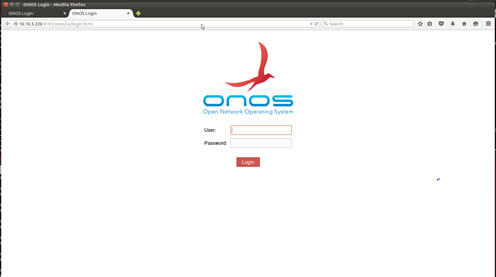
At the ONOS login page, enter:
User:     onos
Password: rocks
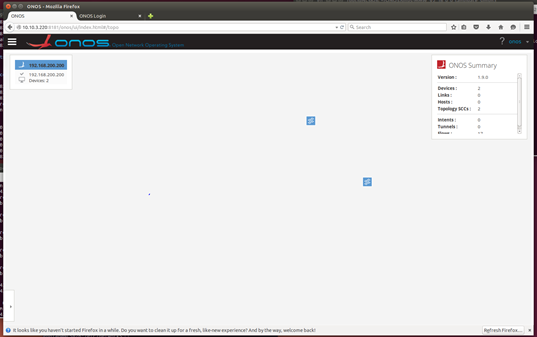
Once logged in, the ONOS topology view will display the GW Node and the non-GW Node when the network controller has detected and registered them.
¶ Step 7 — Start the Orchestrator
The Orchestrator is a thin client web application for provisioning transport slices, bandwidth reservations, and SLAs. See the Orchestrator User Guide (TODO: verify link) for full details.
Start the TomCat service on srv1-in3:
native@srv3-lg1:~$ sudo systemctl daemon-reload
native@srv3-lg1:~$ sudo systemctl start tomcat
Check the service status:
native@srv3-lg1:~$ sudo systemctl status tomcat
¶ Step 8 — Access the Orchestrator in a browser
Navigate to:
http://localhost:8888/orchestrator
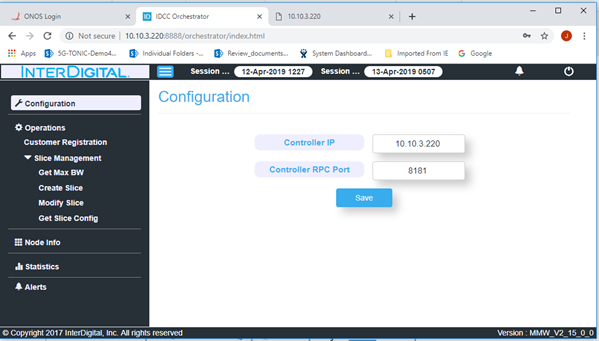
On the Configuration Page, enter:
Controller IP:          <where ONOS is running (your localhost tunnel)>
Controller RPC Port:    8181
Select Save.
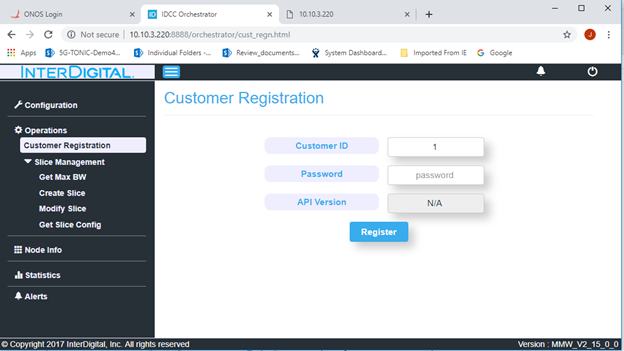
On the Customer Registration page, enter:
Customer ID:  1
Password:     root
Select Register. You should receive a "Registration Successful" indication. You may then select from the available operations. Refer to the Orchestrator User Manual for further directions and capabilities.
¶ Verification
omf stat -t rfdev1-1,rfdev1-2,srv1-in1,srv1-in2,srv1-in3shows all resources online after power-on.ping 192.168.200.10fromsrv1-in3succeeds (GW Node is reachable from the NC).route -nonsrv1-in3shows routes for 192.168.150.0/24, 192.168.200.0/24, and host 192.168.200.10.- ONOS GUI (
localhost:8181/onos/ui) displays both the GW and non-GW mesh nodes in the topology view. - The Orchestrator (
localhost:8888/orchestrator) loads the Configuration Page and accepts the ONOS controller details.
¶ Cleanup
If you modified software on the server node and want to save the image, first prepare the node (run as root on srv1-in3):
root@srv5-lg1:~# ./prepare.sh
This script cleans and dumps old log files and unnecessary files before saving, reducing the image size. The node will shut down at the end of the script. Once back on the console, save the image:
username@console:~# omf save -n srv1-in3.sb1.cosmos-lab.org
Note: the -n option and the fully-qualified node name are both mandatory for a successful save.
To power off all experiment resources without saving:
omf tell -a offh -t rfdev1-1,rfdev1-2,srv1-in1,srv1-in2,srv1-in3
¶ Troubleshooting
| Symptom | Likely cause | Fix |
|---|---|---|
ping 192.168.200.10 fails from srv1-in3 |
Routing not configured | Re-run sudo ./Rutgers_Package/setup_routes.sh; verify route -n shows the 192.168.200.10 host route via enp3s0 |
ONOS GUI not reachable at localhost:8181 |
SSH tunnel not established or ONOS not started | Confirm the SSH tunnel is active; check ONOS started cleanly on srv1-in3 |
| Mesh nodes not shown in ONOS topology | Mesh SW not running on rfdev nodes | Power-cycle rfdev1-1 and rfdev1-2 (omf tell -a offh/-a on) to trigger automatic mesh SW restart |
Orchestrator page not reachable at localhost:8888 |
TomCat not running | Run sudo systemctl status tomcat on srv1-in3; restart with sudo systemctl start tomcat |
| SSH to 10.113.1.102 or 10.113.1.103 fails | Debug Wi-Fi subnet unreachable | Ensure you are SSHing into srv1-in1 (for GW) or srv1-in2 (for non-GW) first before jumping to the debug IP |
omf save fails or saves wrong node |
Wrong node name or missing -n flag |
Use full FQDN: omf save -n srv1-in3.sb1.cosmos-lab.org |
¶ References
- InterDigital EdgeLink hardware page
- COSMOS sandbox 1 hardware
- COSMOS workflow / getting started
- SSH tunnel instructions
- VPN instructions
- OMF image loading
- OMF commands reference
Author(s): COSMOS team · Last verified: Not re-tested (migrated 2026-06-20) · Tested image/release: idel.ndz · Tags: edgelink, interdigital, mmwave, mesh, onos, orchestrator, 4g5g, oran